
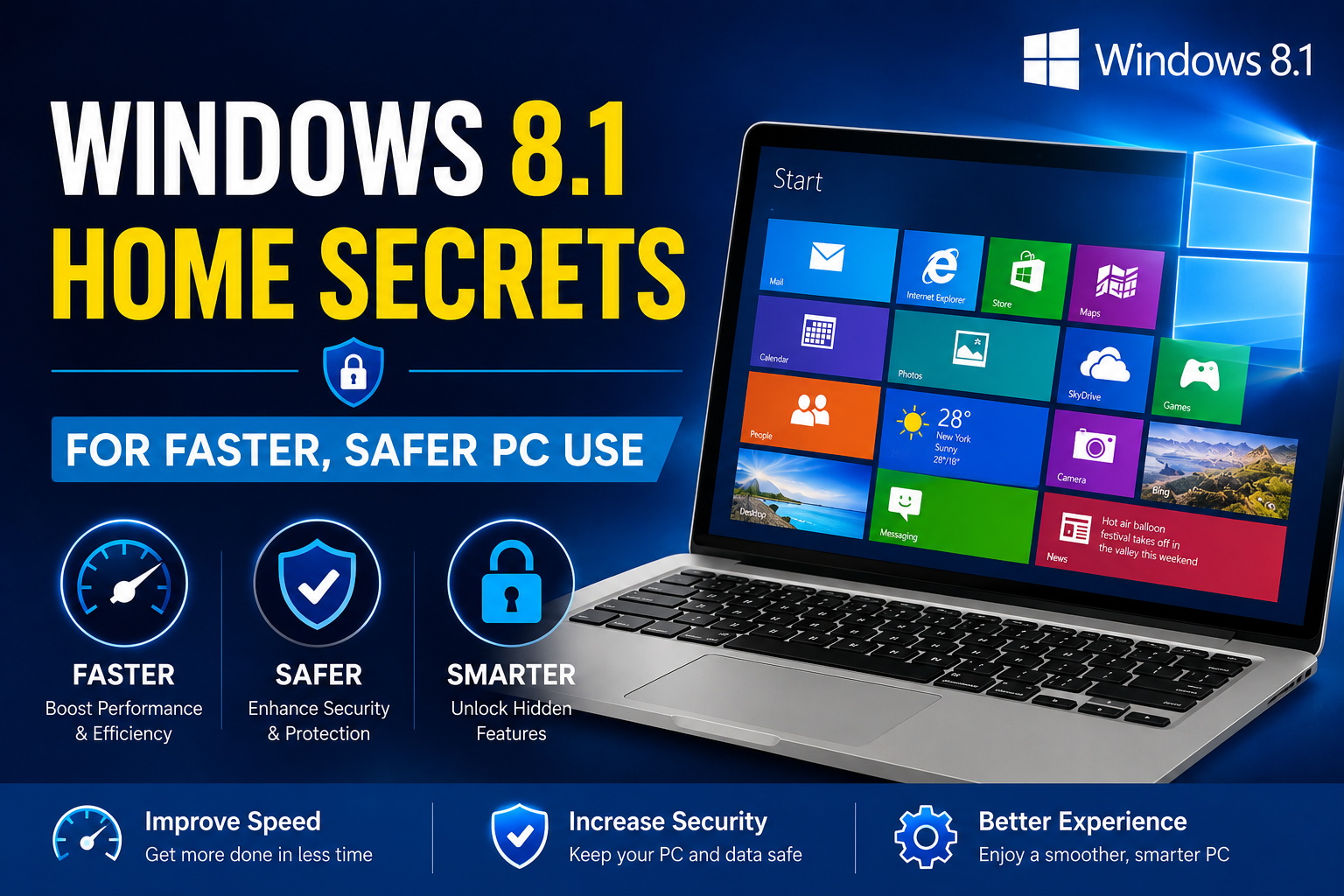
Windows 8.1 Home still runs on many laptops and family PCs. It feels familiar, and it can stay useful with the right habits. Yet, it also brings real risks today. Microsoft ended extended support in 2023, so new security fixes no longer arrive. Because of that, you need smart settings, safer browsing, and a clear upgrade plan. This guide gives practical, current steps you can use right now. It also helps you decide when to keep your setup and when to move on.
Why Windows 8.1 Home still matters in 2026
Many people keep older PCs for schoolwork, simple office tasks, or light browsing. Others use them for printers, scanners, or legacy apps. In addition, some devices cannot handle newer systems well. So, this version remains in real use.
However, the modern web changes fast. Also, attackers target older systems. Therefore, the best approach is to reduce exposure and increase control. You can still get a good experience if you set it up carefully and avoid risky patterns.
Windows 8.1 Home support status and what it means
Microsoft ended support for Windows 8.1 in January 2023. That brings three major effects:
- No new security updates
New flaws will not be patched by Microsoft. As a result, risk rises over time. - Modern app support shrinks.
Some browsers and apps stop supporting older systems. Therefore, compatibility can break. - Compliance and banking issues
Some services may block old browsers or weak encryption. Because of that, tasks like online banking can become harder.
You can still use the PC. Yet, you should treat it like a legacy device. In other words, limit what you do on it, or harden it strongly.
Windows 8.1 Home vs Windows 10: key differences today
People often ask if upgrading is worth it. The answer depends on hardware, needs, and risk tolerance.
Security and updates
Windows 10 still receives security updates through October 2025. So it remains safer for everyday online use. Also, security tools and drivers work better on supported systems.
Software compatibility
Modern browsers, meeting apps, and password managers work more reliably on Windows 10 or 11. Therefore, work and study tasks feel smoother.
Performance on older PCs
Some older PCs run Windows 10 well. Yet, very low-end devices may struggle. In that case, a lightweight Linux option can also help
Windows 8.1 Home system requirements and practical limits
Official minimums are low. Yet, real-world use needs more.
Practical baseline for a usable experience:
- CPU: Dual-core
- RAM: 4 GB or more
- Storage: SSD recommended
- Free space: 20 GB or more
- Browser: Use the newest supported option for your device
An SSD makes the largest difference. Also, extra RAM reduces stutter in browsers.
Windows 8.1 Home setup: the safest first-hour checklist
If you reinstall or set up a used PC, do these steps in order.
- Create a standard user account.
Use an admin account only for installs. This reduces damage from malware. - Turn on the firewall.
It should be enabled by default. Still, confirm it. - Remove unused apps
Less software means fewer weak points. Also, the PC runs faster. - Install a reputable antivirus.
Choose a well-known vendor. Keep definitions updated. - Update every remaining app.
Old apps are common entry points. So update browsers, PDF readers, and office tools. - Use a password manager.
Strong, unique passwords cut account risk. Also, it saves time.
Windows 8.1 Home security: reduce risk without stress
Since OS patches stopped, your goal is to shrink attack surfaces.
Use safer browsing habits.
- Avoid random downloads.
- Skip “free” toolbars and cracked software.
- Do not open unexpected attachments.
- Prefer trusted sites and bookmarks.
Lock down Windows settings.
- Keep User Account Control enabled.
- Disable auto-run for external drives if possible.
- Turn off file sharing if you do not need it.
Add a modern DNS service.
A security-focused DNS can block known bad domains. It also improves reliability. This is not perfect, yet it helps.
Back up like you mean it
Use the 3-2-1 rule:
- 3 copies of data
- 2 different media types
- 1 copy offline
Ransomware is still common. Therefore, offline backups matter.
Windows 8.1 Home performance tips that still work
Older PCs can feel slow. Yet, simple changes help a lot.
Clean startup apps
Too many startup items cause long boot times. Remove what you do not need.
Free disk space
Browsers and updates eat space. Clear temporary files and uninstall unused programs.
Switch to an SSD
If your PC still uses a hard drive, upgrades can feel dramatic. Boot times drop, and apps open faster.
Keep the system cool.
Dust causes heat, and heat reduces performance. Clean vents and fans carefully.
Windows 8.1 Home Wi‑Fi and network troubleshooting
Network issues are common on older laptops. Try these steps:
- Restart the router and the PC.
- Forget the network, then reconnect.
- Update the Wi‑Fi driver from the device maker.
- Use 5 GHz if supported. It is often faster.
- Test with Ethernet to isolate Wi‑Fi problems.
If only one website fails, the issue is often DNS. In that case, changing DNS can help.
Windows 8.1 Home drivers: where to get safe updates
Drivers should come from trusted sources.
Best sources in order:
- PC maker support page (Dell, HP, Lenovo)
- Component maker site (Intel, Realtek, AMD)
- Trusted driver tools only if you must
Avoid random driver websites. They often bundle unwanted software.
Windows 8.1 Home browser options in 2026
Browser support changes over time. So you should check what is still updated on your system.
What matters most:
- You need a browser that still receives security patches.
- You need modern TLS support for secure sites.
If your browser no longer updates, treat the PC as offline-first. For example, use it for documents, music, or local tasks. Then do banking on a supported device.
Windows 8.1 Home and Microsoft account: Should you use it?
A Microsoft account can sync some settings and apps. Yet, it is not required.
If you do use one:
- Enable two-factor authentication.
- Use a strong password manager.
- Review connected devices often.
If you do not use one:
- Use a local account.
- Keep recovery options safe.
Both paths can work. The safer choice depends on your habits and your need for sync.
Windows 8.1 Home upgrade paths: the smart decision tree
Upgrading can reduce risk and improve app support. Still, not every PC should be upgraded.
Path A: Upgrade to Windows 10
Choose this if:
- Your PC has at least 4 GB of RAM.
- You have an SSD or can add one.
- You need modern apps and browsers.
Also, plan ahead. Windows 10 support ends in 2025. So it is a bridge, not a final stop.
Path B: Move to Windows 11
Choose this if:
- Your hardware supports TPM 2.0 and secure boot.
- You want longer support.
Many Windows 8.1-era PCs do not qualify. So check first.
Path C: Use a lightweight Linux
Choose this if:
- The hardware is too old for smooth Windows 10.
- You mainly browse, write, and stream.
Linux can extend device life. Yet, some Windows-only apps will not run.
Path D: Keep it offline or limited
Choose this if:
- You need a legacy program or device.
- You can avoid risky web activity.
This is often best for a “printer station” or “music station.”
Windows 8.1 Home activation and reinstall basics
If you reinstall, activation depends on your license type.
- Many PCs have an embedded key in firmware.
- Some use sticker keys on older laptops.
- If you cannot activate, confirm edition matches your license.
Keep proof of purchase if possible. Also, store keys in a secure vault.
Windows 8.1 Home common problems and quick fixes
Here are issues people face and what to do.
Slow boot
- Remove startup apps
- Scan for malware
- Upgrade to SSD
Random freezes
- Check disk health
- Update drivers
- Test RAM if crashes repeat
“Not enough memory”
- Close heavy tabs
- Remove bloat apps
- Add RAM if the device supports it
Apps will not install
- Confirm 32-bit vs 64-bit compatibility.
- Use the correct installer version.
- Check available disk space.
Windows 8.1 Home privacy: practical steps that help
You can improve privacy without breaking usability.
- Use a standard account for daily work.
- Limit browser extensions.
- Review app permissions and remove unused apps.
- Use HTTPS sites when possible.
- Avoid logging into sensitive accounts on an unpatched OS.
Privacy is partly set. Yet, it is also behavior. So keep habits simple and consistent.
Windows 8.1 Home for kids and family PCs
Family devices need clear boundaries.
- Create separate user accounts.
- Use content filters at the router level if possible.
- Teach safe clicking habits.
- Keep school files backed up automatically.
Also, consider using the device for offline homework tools. Then use a newer device for online accounts.
Windows 8.1 Home maintenance schedule you can follow
A small routine keeps the PC stable.
Weekly
- Reboot
- Run an antivirus quick scan.
- Empty downloads folder
Monthly
- Full malware scan
- Uninstall unused software
- Check disk space
Every 6 months
- Clean dust from vents
- Review backups
- Replace weak passwords
Simple maintenance beats emergency repair.
Windows 8.1 Home: When it is time to stop using it online
You should stop online use if:
- Your browser no longer updates.
- You cannot run supported security tools.
- You handle sensitive data like banking or medical info.
- You see repeated pop-ups or unknown programs.
In that case, shift online tasks to a supported device. Then keep this PC for local use.
Frequently asked questions
Is Windows 8.1 Home still safe to use?
It can be used with limits. However, it is not fully safe online due to no security patches.
Can I upgrade from Windows 8.1 Home for free?
Free upgrade offers change over time. You can often install a newer version of Windows and activate it with a valid license, yet results vary. Check Microsoft’s current guidance and your license type.
What is the best way to speed up an old Windows 8.1 PC?
An SSD upgrade is usually the biggest improvement. Also, reduce startup apps and remove bloat.
Should I use this PC for banking?
It is safer to use a supported OS and a fully patched browser for banking.
Keep Windows 8.1 Home useful with safer choices
Older systems can still serve real needs. Yet, the online world now expects modern security. So, either harden your setup and limit risky activity, or plan an upgrade. With better backups, safer browsing, and smart performance tweaks, you can get a smoother, safer daily experience.
A
Written by
admin
Editor at CDKeyDeals. Covering game keys, software deals, and PC gaming guides.
Don't miss a deal